Wednesday, 29 December 2021

MFA (Multi-Factor Authentication) in Salesforce

 There are two ways to set up MFA in Salesforce:

1.Profile Settings

2.Session Settings

Note :

To enable MFA via session security levels, which is not recommended due to the risk of breaking API integrations or connections.

Profile Settings (recommended) :

You can set a profile setting either with a profile or with a permission set. If you set via a profile, 

all users with that profile will be required to use MFA. If you set via a permission set, 

you can manage which users get MFA and develop a rollout strategy.


To set this, open the profile (or permission set) and open the System Permissions. You can select the Multi-Factor Authentication 

for User Interface Login setting and mark it to True. Do not select the Multi-Factor Authentication for API Logins setting.


Session Settings (not recommended) :

You can set the session settings with two steps:

In Setup ⇒ Session Settings, you can move Multi-Factor Authentication to the "High Assurance" category for Session Security Settings.

In Setup ⇒ Profile ⇒ Session Settings, you can set a profile to require high-assurance settings when logging in.

This is not recommended because it can break API use and logins. Contrary to the Profile Settings method described above, this will require MFA on all logins, including for accounts used for an API Integration or Connected App.

Dedicated Integration Users

Salesforce will not require MFA for API Only users, so if you use a dedicated API User, these steps won't be relevant.

Note :

If you're setting up MFA for a client, we recommend using the System Permissions rather than the Session Settings. 

If a client's API integration suddenly starts failing (with an error such as "Response content: 

[{'message': 'This session is not valid for use with the REST API', 'errorCode': 'INVALID_SESSION_ID'}]" or similar), verify if the session settings have changed. 

MFA Solutions for Salesforce :

MFA is useful to provide an increased level of security to your system, as well as effective ways to help prevent unauthorized account access.

Salesforce supports these types of verification methods

1.Salesforce Authenticator mobile app  : Fast free authentication sfdc.co/IntrotoAuthenticator

2.Third-Party Authenticator App        : Such as: Google Authenticator, Microsoft Authenticator, Authy

3.Security Key                         : Such as: Yubico’s Yubi Key Google’s Titan Security Key 


Not Supported below option

1.SMS (Text) verification : 

Two-factor authentication by SMS is a less secure option, and is available to use only with communities, partners, and customers.

Contact Salesforce Customer Support to enable.

2.Phone call verification

3.Email verification


Email, SMS text messages, and phone calls aren’t allowed as MFA verification methods because email credentials are more easily compromised, 

and text messages and phone calls can be intercepted.


Important: While MFA will not be mandated in Salesforce Communities, if you do implement MFA in communities, SMS is an option for verification.

How is this different than when I log in on a different browser?

There are two types of identity verification in Salesforce, service-based and policy-based security. 

Whenever we log into Salesforce from a different browser or from a new computer, we must provide verification of our identity. 

This is called service-based identity verification, which is available out-of-the-box. 

Now, with MFA, you can add a new layer of security on top of it with policy-based identity verification.

Service-based (device activation) :

 -> Auto enabled for all orgs

 -> User must provide verification from unrecognized browser or application

 -> Not considered as part of MFA (insecure)

Policy-based (MFA) :

 -> Admin enabled

 -> Multi-factor


What should you keep in mind with MFA?

Here are several things to keep in mind when rolling out MFA.

What are the System Permissions related to MFA for user interface logins?

Multi-Factor Authentication for User Interface Logins :

Require users to provide an additional verification method in addition to their username and password when logging in to Salesforce orgs.

Manage Multi-Factor Authentication in User Interface :

Use tools in the user interface to manage and provide user support for multi-factor authentication.

What about MFA for API logins?

API logins are not currently part of Salesforce’s mandate to use MFA. 

What happens if a user loses or forgets their device?

Admins can generate temporary verification code that can be set to expire 1 – 24 hours by adding the Temporary Code field to a User list view and clicking "Generate".

Sunday, 19 December 2021

Salesforce : RowCause in Share object

 RowCause is the reason why the share exists. There are a large number of reasons why shares may exist. 

A non-exhaustive list of standard shares are as follows:


Owner             - The user in OwnerId

Manual            - A manual share from the UI or code

Rule              - A sharing rule created this entry

ImplicitChild     - A parent record shares access with its children

ImplicitParent    - A child record shares access with its parent

ImplicitPerson    - Person Account Sharing (?)

Team              - The user is a member of a team (AccountTeam, OpportunityTeam)

Territory         - The user is in a given territory

TerritoryManual   - The record was manually shared to a territory

Territory2AssociationManual - The record was manually assigned to a territory

TerritoryRule     - A territory rule shared the record

Territory2Forecast - Territory forecasting calculations shared the record


Only manual shares and custom shares can be created, modified, and deleted, although some shares can also have their AccessLevel fields modified (e.g. Team sharing entries). 

All of the others are generated by the system based on sharing calculations. 

For example, the user specified by OwnerId automatically gains a sharing entry for Owner. 

You can't remove this entry because they own the record. Likewise, you can't add a new Owner this way. 

Instead, you would change the OwnerId field, and the system recalculates the Owner sharing entries based on that change.


I may have a few descriptions not quite right, and there may be some missing options; 

I simply pulled these values from the describe for the RowCause field and extrapolated based on my knowledge of Salesforce.

There's a lot of information about these various sharing settings in the documentation, but they're spread out across many topics. 

You'll want to do more research on it.


For anything other than manual shares, you must correct the situation that caused the share. 

For example, if the share reason is Team, then you must delete the appropriate AccountTeamMember or OpportunityTeamMember record.

Sunday, 21 November 2021

Salesforce Marketing Cloud Basics


Marketing Cloud Enables you to communication with your customers utilizing an omni-channel strategy.

This Platform allows you to capture data, connect to your CRM and personalize each touch point.


Marketing Cloud is a sophisticated marketing automation tool that enables a business to communicate with their customers across channels they prefer.

These channels include email, text, push notification, ads, and web experience. Marketing Cloud enables this communication, but also enables you to automate when and on what channels your customers will receive these touchpoints.


Super Messages :


They are simply the way that Salesforce keeps track of the customer‑facing messages or experiences that come from Marketing Cloud. 

Each customer likely does have a different volume of messages as this varies based on their tier of purchase and also how many messages you plan to send out and what channels.


Well, the number of Super Messages is really going to vary based on the location of your subscribers, but let's say that we're sending out to only people in the United States. 

The cost of one SMS message in the United States is currently 10 Super Messages. 


So in our example, after we send out this message to the 10,000 audience, we've sent out 1000 SMS messages, but it's incremented up to 10,000 Super Messages. 

It's really important you monitor your sending behaviors throughout the year, and also, look into how many Super Messages you have in order to stay within your limits, and if you need to, purchase more throughout the year.


Marketing cloud Automation :


Marketing automation is technology that manages marketing processes and multifunctional campaigns, across multiple channels ,automatically.


What does Marketing Automation do ?


1.Messaging


Marketing automation allows you to communicate with your customers across multiple channels.

  (or)

Communication across multiple channels. 


2.Automation 


Automate when and what channel you send messages.


How does Marketing Automation affect my business ?


1.Grow your business 


Increase your volume, conversion and ROI


2.Customer Experience


Create more satisfied customer with your brand.


Studio's and Builders :


Within Marketing Cloud, there are two different types of apps, studios and builders.


Studios :


Apps that enable you to create messages that your customers interact with.


Email Studio 


Email Studio is used to develop email templates, messaging, and personalization that can send your customers.


Mobile Studio


Mobile Studio, which is where you can build and send SMS and push notifications and chat app messages across your channels.


Interaction Studio


Interaction Studio, which enables real‑time orchestration of content across channels and also provides next best actions to customers.


Social Studio 


Social Studio is a listening, publish, and engaging platform that enables you to manage your social media accounts such as Facebook and Twitter.


Advertising Studio


Advertising Studio uses your first‑party data to securely build a one‑to‑one advertising campaign across multiple social channels such as Google, Facebook, LinkedIn, Twitter, and Pinterest.


Automation Studio


Automation Studio, which is where you're able to build the automation of your messaging to your customers across multiple channels. 


Builders :


Apps that are used to build the piping,automation,track how everything is permorming.


Journey Builder


Journey Builder is where you pull all of this cross‑channel communication and messaging together, so that you can orchestrate the lifecycle of a customer's experience.


Analytics Builder


Analytics Builder, which is used to track how those communications are performing and gain insights into how your customers are behaving.


Contact Builder


Contact Builder is the ability to store data from multiple sources and stitch it together, and it is the app that is used to segment and personalize your data.


Datorama


Datorama, which is a cross-platform marketing intelligence tool.


Content Builder


Content Builder, which is where you store your assets, develop your email communication, and develop your templates to scale across all of your communication.


Foundational Elements of Marketing Cloud :


1.Business Units

2.Users & Roles 

3.Sending Reputation

4.Data


Business Units :


Business units are a way to control how information is shared across Marketing Cloud. 

This provides you the ability to manage data control and brand separation inside of your single instance of Marketing Cloud.


Note : 

it's really important that before creating new business units, you map out the intended structure based on your organization.


Users & Roles :


They are a collection of permissions you have access to within marking cloud which make up the type of role you'll perform. 

Currently, there are 10 standard roles that are a good start to separate out the levels of access of people requirements. 


Some examples of these standard roles include system admin, data manager, analyst, content creator. 

My suggestion is always being with the standard roles and determine if there are any gaps you need to separate out your users permission above the standard roles.


sending reputation :


Sending reputation is one of those elements that can be easily overlooked as you think about building a solid marketing cloud foundation, 

but it is one of the most essential elements you need to understand.


Sender reputation is how the world's ISPs(Internet Service Providers) see your email communication, is it legit, is it spam? Should I put it in the main inbox or file it away into promotions? 

When you start with a new brand and a new instance, you have a very neutral reputation. You have a fresh new IP, which is your company's address on the open web.


As you begin to send email communication, the type of content, higher customers react to that message, will begin to build a positive or negative reputation. 

Prior to sending any communications though, you need to set up your sender authentication package, which is a package that pulls together your IP address in your domains. 

The sender authentication package, as I mentioned before, is made up of two big elements, IPs and domains. Each instance has an IP address. 

It's most common to have a dedicated IP address, but in some cases you may have a shared one with a few other accounts depending on your limited volume. 

On the other side, you have domains, which will be used to link what will be shown in your emails in the landing pages and images to your brand and your SAP(Sender Authentication Package) package.


Data :


1.sources


This is where the data is stored in Marketing Cloud. In most cases you'll be utilizing data extensions 

which are a flexible way to store small and large data that can either be your customers directly or information about them.


2.inputs


Inputs are how the data gets into Marketing Cloud, this typically includes out-of-the-box integrations with Sales Cloud, but can also include APIs and FTP integrations to bring new data into Marketing Cloud.


3.Automation


Once you have your data in Marketing Cloud, you typically need to transform or segment it in some way to get to the right audience, 

that's where queries and filters come into the picture.


Salesforce Marketing cloud Security,Compliance and Governance :

==============================================================


Security :


Within security, there are three main categories.

1.Logins


This includes your information for your login, your FTP information, but it also includes the settings you have inside of your instance. 

How long it takes an account to log out when you've logged in and it's been idle. Do you have SSO set up? Is there an authenticated app in play here?

Ensuring that you have your security standards set up correctly for logins can prevent a lot of miss access of data.


Note : Timeouts SSO and Authenticated Apps


2.Data


we have data, which includes data encryption, how that data is accessed through business units, and import and export of data. 

Data is the key of your business, so it's really important to understand what are the compliance requirements of your industry and, also, 

how are you going to keep that data secure?


Note : Data Encription,business units and access.


3.Landing Pages


Because Marketing Cloud has a capability to display landing pages on the open and public web, 

you need to make sure that how you're displaying that information, what type of information, 

and how you capture information about your customers is set up properly so that the information is secure in that transfer.


Note : Secure display and capture of data from the web.


Roles :


1.Marketing Manager 


At the top of the list, you have our Marketing Manager. This person is responsible for directing the team where they're going to be heading and bringing the requirements to the table to define what is being built in Marketing Cloud. 


2.Marketing Cloud architect


Marketing Cloud architect who is responsible in finding how the overall solution will be constructed based on the business requirements.

Key activities include defining how data will be used in the platform, building for scale, and ensuring the proper use of platforms, and so much more.


3.Content Manager


Generally, the Content Manager is responsible for asset creation and will bring the email from concept to life.


4.Data and analytics analyst


Data and analytics analyst will work in tandem with the Content Manager to build up the necessary filters, transformations, and ensure the company is sending to the right audience.


5.Marketing Cloud Developer


Marketing Cloud Developer role is critical as you begin to mature your communication and begin to bring personalization that will require AMPscript into life.


Governance Models :


There are a lot of different types of governance models in the world. For marketing automation, I've seen three typical models that have been developed in order to really provide the scale you need for your instance. 


1.Hub and Spoke


Hub and spoke, which is a centralized methodology where the best practices are centralized, but the resources are distributed.


2.Centralized


where our centralized resources really do live in a single team and support the multiple lines of business and business units across the entire corporation.


3.Multi-hub and Spoke model


This is essentially a large scale distribution model of the hub and spoke, but depending on the complexity of a business, this may extend further and further out.


Common compliance regulations :


CAN-SPAM, CASL, GDPR and others.

Saturday, 20 November 2021

Salesforce Territory Management

 Territory Management is a tool for sharing account records with users.


Territories organized by specific criteria.


Orgs can increase Sales and lower costs.


Territory Types are used to categorize territories.


Territory Models offer way to preview/test strategy.


Role Hierarchy vs Territory Management :


Role hierarchies are great for representing your organization's entire management structure, but each user will be assigned to one role.


A territory hierarchy however, is just specific to managing sales territories. In this structure, you can have one salesperson assigned to multiple territories.


Territory Management :


Territory Management starts with an account record.

Territory Management revolves around an account record.

Each account record is typically associated with one or more contact records, along with cases and opportunities.


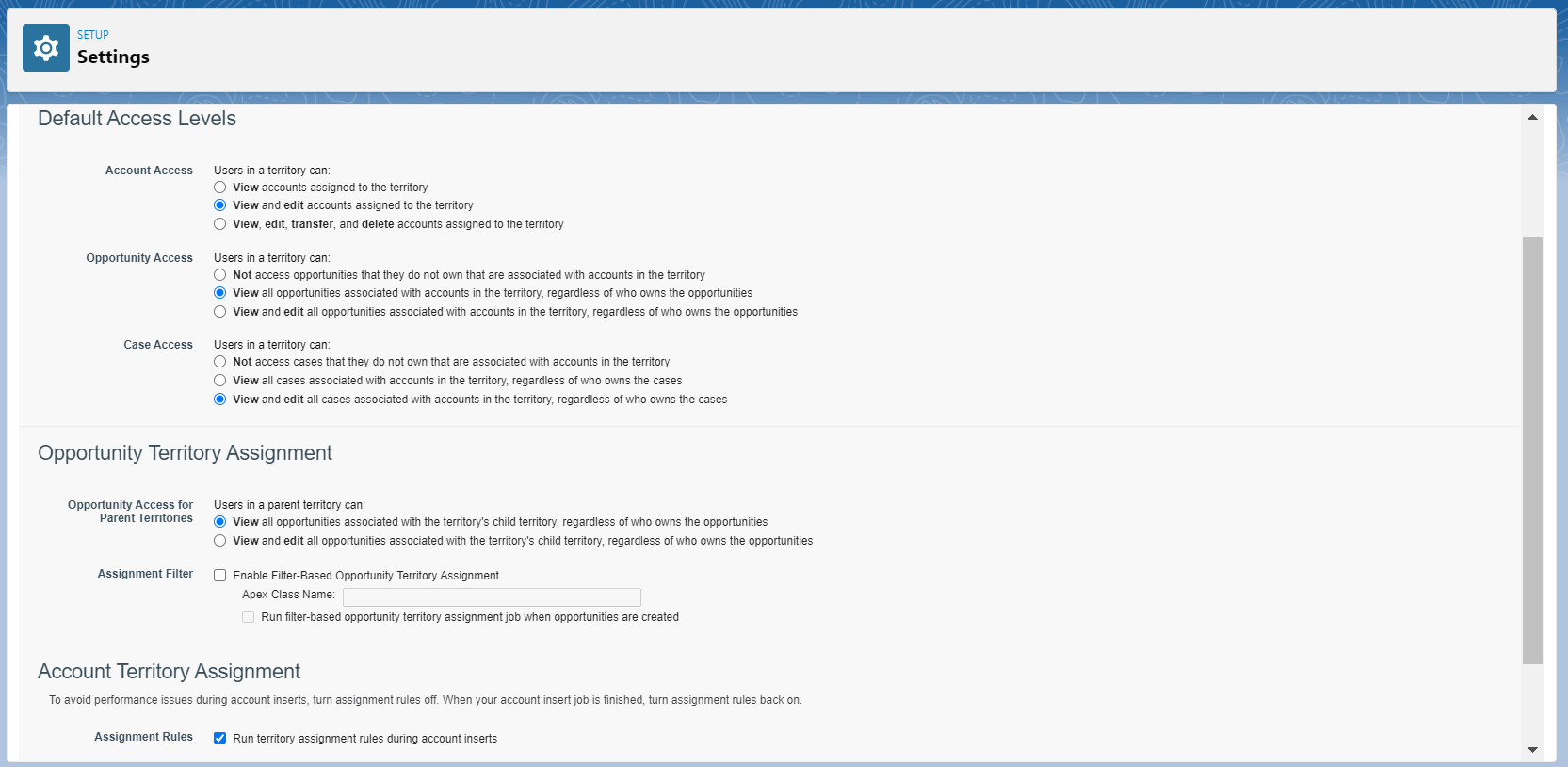
Default Access Levels :


Territory Management is not enabled by default, but in addition to enabling this feature, you will also need to configure access to certain data objects.

That being said, it is important for you to realize that for account records, you will need to configure access that allows users to either view an account, or view and edit an account, or view, edit, transfer and delete an account record.


Since territory management revolves around an account record, any objects that are associated with an account, such as a contact, well, these will be configured a little differently. 

And most importantly, which associated objects needs to be configured will depend on how you have defined the org-wide defaults or sharing settings in your org.


You also have an option to allow users to view any related contacts or view and edit related contact records, and these default access options apply to any related account objects, and that includes cases, as well as opportunities.


Opportunity Territory Assignment :


One optional configuration option you need to be aware of involves access to opportunities that are associated with a parent territory.

Territories can be organized into a hierarchy, and there can be one parent territory that is associated with multiple children territories.

It is possible for there to be opportunities that are assigned to some of these children territories, and when configuring access, you have the option of determining what kind of access to these children is allowed.


Opportunity Territory Assignment allows you to optionally Enable Filter-Based Territory Assignment. 

Salesforce does provide some Apex code that you can modify to suit your needs, but this is really an edge case that most orgs will never utilize.


Note :

When Contact sharing is set to 'Controlled by parent', access to the Contact is the same as access to the Account.


Account Territory Assignment :


To avoid performance issues during account inserts, turn assignment rules off.

When your account insert job is finished, turn assignment rules back on.


Territory Type :


Territory types help you categorize and define individual territories. Creating territory types is the first step in building your territory model in Salesforce.


Territory Model :


When it comes to creating a new territory, each territory will need to be associated with both a territory type and a territory model.

The Territory model is used to connect a territory with user and account assignments.

Each territory model will always be in one of the following states.

1.P1anning

2.Active

3.Archived


By default, each new model begins in the planning state.

Once a model is well defined and previewed, it can move to an active state.

There is always the option of moving a once active model to an archived state.


One of the big benefits of Territory Management is that a sales team can define up to four different territory models; however, only one of these models can be in an active state.


Territory Hierarchy :


The territory hierarchy defines a model’s territory structure and serves as its main point of interaction.


Collaborative Forecasts :


Collaborative forecasting is a tool that quite simply provides a prediction, or forecast, of future sales.

It all revolves around the Opportunity object, which, as you know, is one of the objects impacted by territory management.

Forecasting involves working with multiple factors like what time period is involved, what kind of revenue is expected, and what kind of adjustments might need to be made, things like that.


Note : Territories must have a forecast manager assigned.


Summary 


1.Territory Management must be enabled and default access defined.

 --> Access levels available depend on OWD

2.You  can have four different territory models, but only one will be active.

3.A territory hierarchy can be nested and should not duplicate your sales structure.

4.Enable Customizable forecasting.

 --> You will need to enable Customizable Forecasting, and any territories you create should have a forecast manager assigned.


Territory Assignments :


1.Territory Assignments are actually a few things that can be assigned to a territory.

2.Accounts are the main thing you will assign.

3.And even though accounts are owned by users, which by default means that if an account is assigned to a territory, well, 

so is the user that owns it; however, you can also assign salespeople that operate in a specific territory to that territory 

regardless of whether they own any accounts that are assigned to it.

4.Opportunity Territory Assignment setting allows you to assign opportunities to territories.

5.One or more assignment rules can be assigned to a territory.


ways to handle Territory Assignment :


When it comes to assigning territories, we have two ways to do this.


1.Assignment Rules

2.Assign manually


Assignment Rules :

Assignment rules, which you can be assigned to a territory, are the automated way to make this happen.

Assign Manually :

You have the option of assigning one or more territories manually to an account, and this includes users, opportunities, and even assignment roles.


The Territory models include a territory hierarchy.

This hierarchy can be nested, and parent territories can be associated with multiple children territories. 

It is important to realize that a parent-to-child relationship exists for these hierarchies, and children will inherit the sharing access of their parents if that is configured so.


Note : 

Salesforce does offer a granular locking feature that enables organizations to lock a portion of records and not an entire group maintenance table 

when certain events take place, for example, events like adding and deleting territories or even just adding or moving users from a territory.


View and Manage Assignment Rules :


what permissions allow users to view and manage territory assignments?

1.Manage Territories

2.View Setup and Configuration


Assignment Rules :


Define criteria used to select accounts

- Amount of company revenue

- Number of employees

- where company is located

- what industry they belong to

Limit to 10 criteria fields

-You should know that these rules are limited to no more than 10 criteria fields.


when an assignment rule is assigned to a parent territory, you have an option to have it automatically applied to all children territories. 

Applying a rule to children territories from the parent territory is actually considered a territory management best practice.


Manually Assigned Accounts :


why Manually Assign Accounts?


There are always special considerations that need to be made, and manual assignments could be thought of as a workaround.

It is also possible to assign an account to more than one territory, and a manual assignment may be the best way of accomplishing that.


Manually Assigned Users :


When it comes to territory assignments, accounts that are assigned to a specific territory are assigned independently of any users that are assigned to that same territory. 


Note : Assignment rules must be run before account sharing rules are applied.


Any users assigned to that territory will automatically have access to the account regardless of whether they own that account or have been granted access through some other way.


Run Assignment Rules :


When it comes to running rules for any territory model, that model can be in either an active or a planning state.

You can essentially preview which accounts will be assigned to which territories before you actually activate that model.

Remember, you can have up to four different models, but only one of those models can be active.


Note : Just don't forget that previewing assignments should be done in a full sandbox before running or activating a model in a production org.


Just don't forget when creating new rules that the assignment will not happen until the rule has been assigned to a specific territory. 

It would be very easy to forget this step and not understand why the assignments were not happening.


Summary :


Territory Assignment includes 

Accounts, users, Opportunities(may be), Assignment rules

Territories assigned using rules or manually.

Territory updates can result in record locks.

--> Large orgs should plan very carefully.

Children territories can inherit rules from a parent.

Users that manage territories need :

--> Manage Territories

--> View Setup and Configuration

Assignment rules can be run when model is in planning or active state.

--> Rules must first be assigned to at least one territory.

--> Best practice is to apply to all children.

Sunday, 31 October 2021

SALESFORCE LIMITATIONS AND BEST PRACTICES

 Sharing Rules :


The limit is across both Standard and Custom Objects as 300 Maximum rules with 50 Criteria Based rules on Enterprise and Unlimited/Performance Editions only.

You can create up to 50 criteria-based sharing rules per object.


Note :

On an object where the OWD setting is 'Controlled by Parent' you will not be able to set up sharing rules, so you need to change this, 

e.g. On Contact to either 'Private', 'Public Read only' or 'Public Read/Write' to add sharing rules on this specific object.


As a best practice, keep the number of ownership-based sharing rules to 100 per object, 

and keep the number of criteria-sharing rules to 50 per object.


Note : 

1.Removing an Account team member doesn't remove an Opportunity team member.

2.Know that platform out of the box 'implicit' sharing doesn't apply to Apex sharing.

3.You can create up to 10 Apex sharing reasons per custom object.


Not Possible with permission set :


The only things that must to be controlled by Profiles and can't be structured in Permission Sets are:

Page Layout Assignments

Desktop Client Access

Login IP Hours

Login IP Ranges


Saturday, 30 October 2021

runAs method in Apex Test Classes

 1.RunAs will use the record sharing view-ability of a record when viewing. It doesn't respect user permissions or FLS.

2.You can only use RunAs in test methods, and it doesn't respect user license limits.

The runAs method ignores user license limits. You can create new users with runAs even if your organization has no additional user licenses.

3.RunAs can be used for mixed DML exceptions that would normally occur.

4.RunAs can take a package version as an argument.


ex :

      // Run test as managed package version 1.0

      System.runAs(new Version(1,0)){

          try{

              insert o;

          }

          catch(System.DMLException e){

              System.assert(false, e.getMessage());

          }

      }

Salesforce Implement Sharing and Data Skews


Implement sharing is defined and maintained by the system.


1.Parent 

2.child

3.Portal

4.Case

5.Share Groups (High Volume)


Parent Implicit Sharing :


'Parent implicit sharing' provide read-only access to parent records(Account only),

when user has access to children record,such as : Opportunities,Cases,or Contacts for that account.

This does not mean the user must be the record owned of the child ecord.


(or)


The Parent Implicit sharing provides read-only access to parent record if the user 

is having access to the child record.


Note :


Only affects Account to Case, Contact and Opportunity.

Account = private and Child !='Controlled by Parent'

As soon as a user has atleast Read access to a Case,Contact or Opportunity the user has Read access to the related Account.


Child Implicit Sharing :


Child Implicit Sharing is ability for Account owner to access child records (contacts, opportunities, and cases),even they are not owned by Account owner. 

The account owner's role determines the level of access to child records (read-only or read/write).


The child Implicit sharing provides Read/Write access to child record if the user is the owner of the parent record.


Access to child records for the owner of the parent account.

Not used when sharing on the child is 'Controlled by Parent'.

Controlled by child access settings for the account owner's role.

Supports account sharing rules that grant child record access.

Supports account team access based on team settings.

When a user loses access to the parent, Salesforce needs to remove all the implicit childern for that user.


Note :

Only affects Account to Case, Contact and Opportunity.

Only affects Account Owner.

Each role independently can define whar child-record access the Account Ownership provides. 


Portal Implicit Sharing :


Portal Implicit Sharing will provide Read-only access to portal account 

and all associated portal user's contact record using portal role sharing.


Access to portal account and all associated contacts for all portal users under that account.

Shared to the lowest role under the portal account.


High Volume Portal Implicit Sharing :


In this Implicit sharing any record owned by high volume portal users will be shared 

with other high volume users who are part of sharing set.


High Volume Parent Implicit Sharing :


In this implicit sharing, read only access will be given to parent account 

of records shared through a sharing set to other user members.


Controlled by Parent vs  Implicit Sharing :


Note : Controlled by Parent isn't the same as Implicit Sharing.


Implicit Sharing :


Implicit Sharing is when a user gains access to a child record and also gains read-only access to the parent.

e.g. a contact is assigned to a user, and thus gains read-only access to the account.

Implicit sharing only has an effect when the parent object is Private and the child is not Controlled by Parent


Controlled by Parent :


Controlled by Parent, in contrast, grants read or read-write access to the child records when access is granted to the parent. 

It has an effect in all parent share modes (private, read-only, and write).


Using Controlled by Parent will decrease row lock time on the parent, but not eliminate it. 

There has to be a lock on the parent while the children are being updated. 

Controlled by Parent will increase performance because there's no child share table while in this mode 

(the children's access is checked using the parent's share table).


Case share  :


If a portal or customer community plus user is a contact on a case,then the user has read and write access on the case.


The contact for a Case has Read & Edit Access on that Case.

Only affects Partner and Community Plus Licenses.

Community License Users need Sharing-Set.


Share Group (High Volume) :


Access to data owned by high volume users associated with a sharing set for users member of the sharing set's access group.


All members of the sharing set access group gain access to every record owned by every high volume user associated with that sharing set.


profile : Customer Community


Record Ownership by User is necessary.

Affects(almost?) all objects.

Record Owner needs Profile in share Set.

Any Record owned by a profile mentioned in the Share Set is shared with any user mentioned in the related share group.


Record Locks & Skews :

======================

Record Locks can happen


1.Business-related 

  Defined by business process and implemented intentionally (e.g.Approval Process,read-only record types).

2.System-related 

  Done by Salesforce, available and implemented out of the box (cannot be changed)


System Related Record Locks :


Quality of a database is often measured by its data integrity:

1.Data accuracy

2.Data Completeness

3.Data consistency


One measure by Salesforce (and many other databases) to maintain data integrity is to place record locks on records(and their parent records)

while they are being edited.


Note :

A given transaction can only wait a maximum of 10 seconds for a lock to be released,

otherwise it will throw and UNABLE_TO_ROW exception.


Data Skews :


In a database, a skew refers to a situation in which there is an uneven distribution of data.


Data Skews in Salesforce 


In salesforce, data skews happen when records relate to one another and child records are unevenly distributed across the parent records.

They will typically result in performance issues.


There are three kinds of data skews that can occur :


1.Account Skew

2.Ownership Skew

3.Lookup Skew


Lookup Skew :


Lookup Skew happens in object relationships when a large number of child records are associated to one parent record.


When a child record is inserted or updated, Salesforce locks the parent record the child will be associated to in order 

to maintain data inegrity.When you work with large data, and there are processes (e.g. custom code, automated processes, integrations)

you can easily run into lock contention.


Lookup skews happen in lookup relationships AND master-detail relationships.

Lookup skews can effect standard AND custom objects.


How to identify a Lookup Skew :


There is no exact identifier by which you will be able to identify a lookup skew .

Don't wait until somebody complains, try to address to problem right away.


Take a look at the following 


1.Objects with a lot of records.

2.Objects where a lot of inserts and updates happening in parallel.

3.Objects where you get complaints about locks from users.


How to avoid Lookup Skews?


1.Reduce Record Save Time (Apex Best Practices,Asynchronous Processing,Consolidate Automation).

2.Picklist fields.

3.Distributing the skew.  

4.Reducing the load (Serial loading, order by Parent Id and chunk the data carefully).


Account Skew :


An Account Skew arises, when a large number of child records (>10,000) are related to a single account.


There are two main problems that can be caused by an Account Skew:


1.Record Locking

2.Sharing Problems


Account skew - sharing problems 


Sharing problems arise because of Salesforce built-in parent implicit sharing.

(Users with access to contacts,cases and opportunities get read access to the related account).


If sharing of a child record of a certain object is updated, Salesforce will have to check all other 

children of that object to check, if the implicit share for the Account can be removed.


Depending on the amount of childern, the recalculation can take long and will cause performance issues.


During the whole operation, a lock is placed on the account preventing other from editing it.


How to avoid Account Skews?


Limit the amount of Account Children per object to 10,000.

If you need generic Accounts, create a pool of accounts and use a round robin algorithm to distribute them.

Consider setting the Account OWD to 'Public Read/Write'(The record locking 


Ownership Skew :


An ownership skew happens, if a single user owns more than 10,000 records of one object.


Performance issues caused by an ownership skew will most typically appear in large organisation where 

data chnages that require sharing recalculation happen frequently. These changes could happen on :


Ownership based sharing rules

Record ownerships

Group members/ Role Hierarchy


How to avoid Ownership Skews?


1.Ensure that the 'Skewed' owner is not part of the role hierarchy or put them in a role 

at the top of the hierarchy/ within its own branch.

2.Don't move the user into another role/move the role within the role hierarchy.

3.Keep the user out of public groups used for sharing.

4.For organization wide sharing, review OWDs(is private necessary?)


In Overall to avoid DataSkew :


Avoid Large number (>10,000)of child records in master/Detail relationship 

Avoid Large Number of records owned by one user

Avoid RecordLocking